
Streamlining subscriptions
What motivated us at Akiani in the first place to look for an alternative to Zeplin was above all their pricing policy change and the number of seats available. Indeed, since the last update on Zeplin, if you decide to add a collaborator as a developer, you will also have to pay for that seat. Only reviewer profiles (view-only) are free.
By contrast, when you have an Adobe account, there is no limit on the number of editors, documents and shared links.
For the more curious, we’ll leave you to compare the pricing plans of the two solutions.
What does this mean in practice on a day-to-day basis?
You design your mockups on Adobe XD and then you simply generate a link directly from the software and share it with your clients, developers, users and so on. No one other than you needs to take out a subscription to navigate between screens, use your prototype, access the code, components, colours, dimensions and so on.
Of course, the service offered by Adobe is not perfect, and Zeplin offers many benefits that Adobe XD does not (yet?) offer, which can potentially justify using it despite these pricing changes.
Handoff collaboration on a single platform
The other benefit of using Adobe XD as a collaboration tool is that you don’t have to bring a new tool into your process. This avoids extra subscriptions, a learning curve, information losses or potential conflicts with other software.
At Akiani, this also reflects our aim to streamline internal processes by making the most of the Adobe suite and the synergy between its tools.
Adobe therefore includes (and it isn’t new) this handoff solution, directly inside Adobe XD. A solution that exists on other tools as well, like Figma for example (which we also use).
The workflow becomes simpler. You design the mockups on Adobe XD, you share and update the links through the same interface.
No more need to export and sort screens into another work environment. All the components are gathered in one and the same place. No more export bugs, vanishing artboards or time wasted categorising elements into different sections.
This last point about categorisation needs qualifying though. Zeplin has the big advantage of being able to easily organise screens, allowing for an overview of the prototype and making it easy to find your way around.
Customisable sharing
The link sent to developers gives access to several pieces of information and key components:
- Access to basic CSS code
- Retrieval of character styles and the colour palette
- Visualising the structure of a screen: padding, margin and so on
- Downloading components (pictograms, images and so on) in the usual formats: .png, .svg or .pdf
And when you’re not a developer?
Beyond the collaboration with developers, Adobe XD also lets you customise the shared view of the design according to the target audience (designer, project team, user testers and so on):
- Design review: to comment and get feedback on your design or prototype (very useful when iterating with the project team or other designers).
- Presentation mode: to present your screens (useful during a presentation or review session, to show the prototype in the most realistic version possible).
- User testing: to test your prototype with a panel of users and put them in the best possible test conditions.
How do you share a prototype with developers?
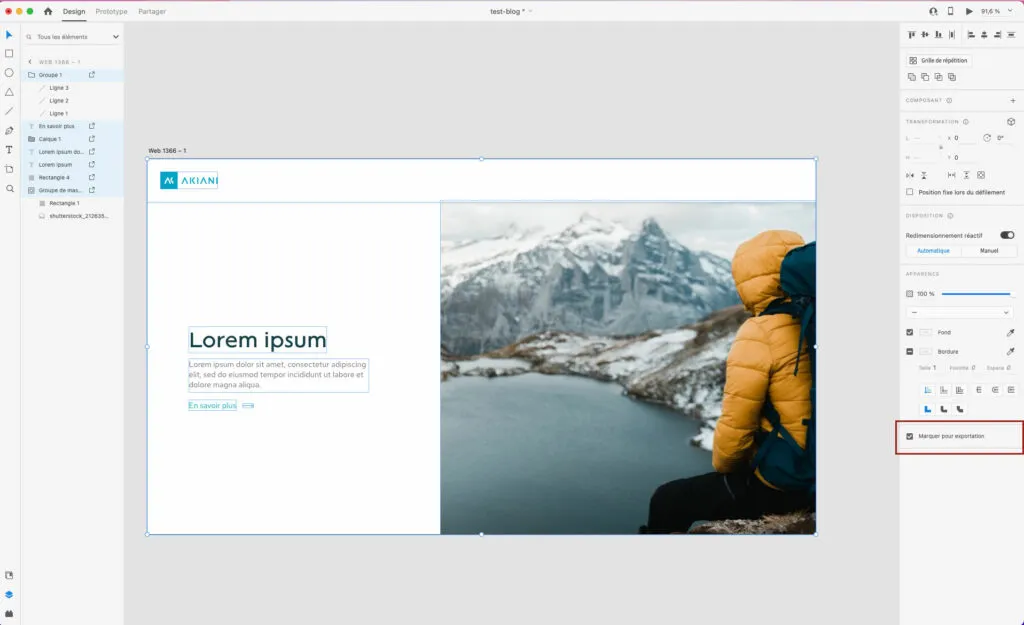
Once you have designed your different screens, the first thing to do is to select all your assets to “mark them for export”. To do this, select the elements and use the checkbox located in the right-hand panel, then save the file.
Be careful: make sure to ungroup the elements, otherwise the developers won’t be able to download the elements one by one.
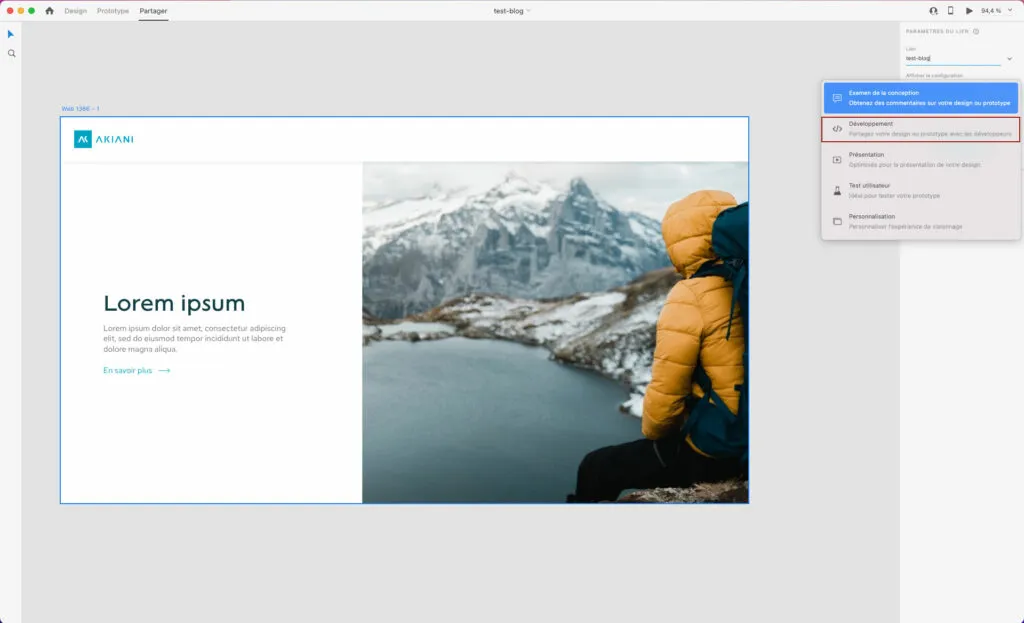
Click on the “share” tab located at the top left of Adobe XD. From the right-hand panel, you can configure various elements. Under “link” you have the option to change the title of your link (the client’s name, for example).
In the “view configuration” dropdown, you can choose the type of link you want to create.
In our case, you need to select “development”. This feature lets you hand off your design elements to developers. When the configuration is on “development”, new elements appear underneath. You can choose for the export to be in “web”, “iOS” or “Android” format.
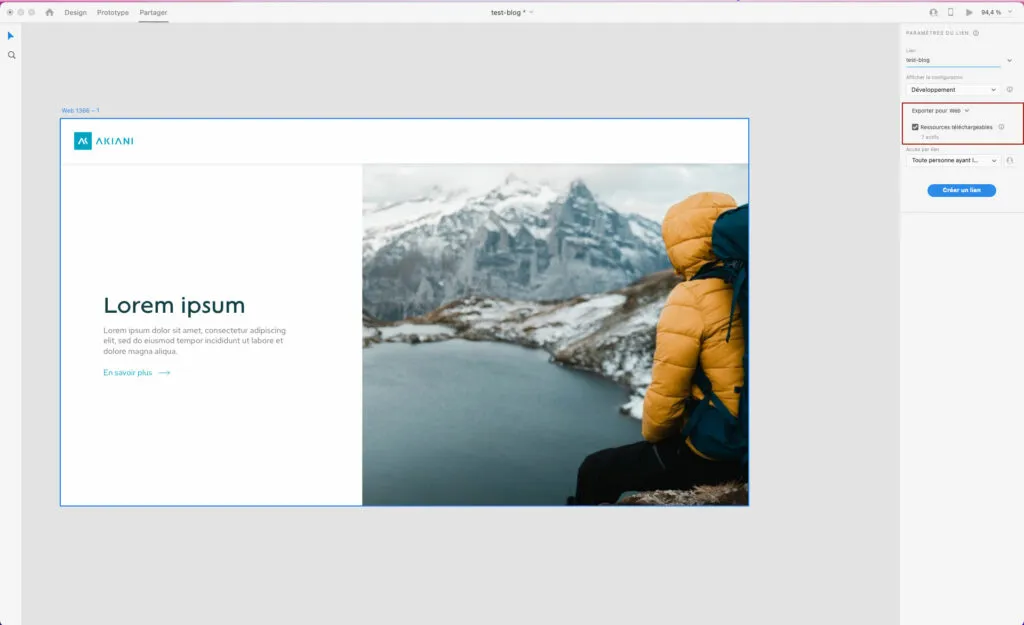
Second-to-last very important step: tick the “downloadable resources” checkbox. Without this box ticked, the developers won’t have access to downloading the various elements (icons, logo, images and so on).
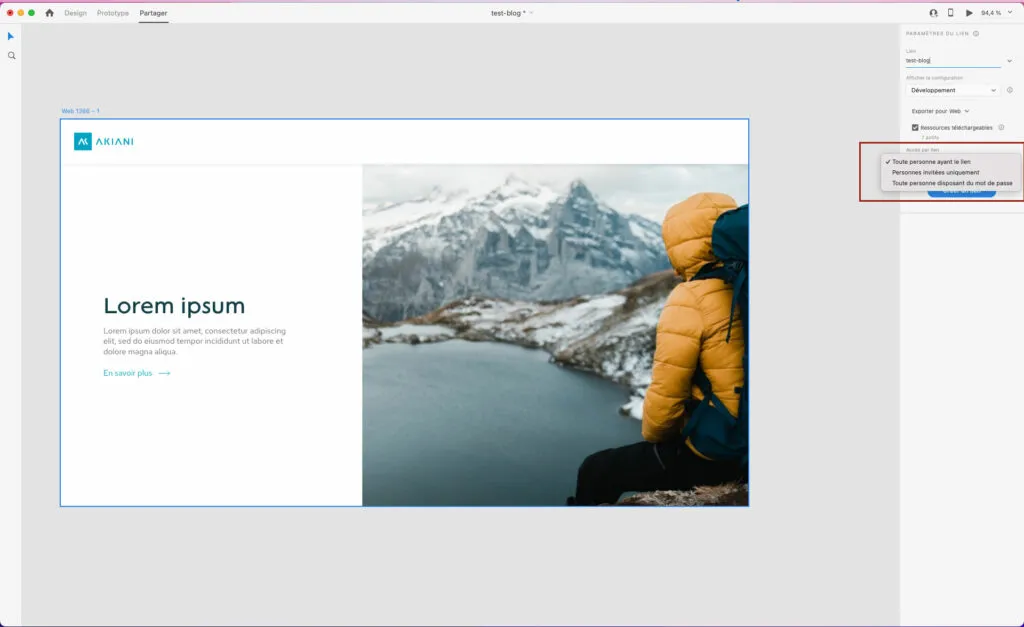
On the security side, you can choose to restrict access to this link, via the “link access” dropdown:
- Set a password to access the link
- Invite only the people concerned
- Restrict access only to people with the link
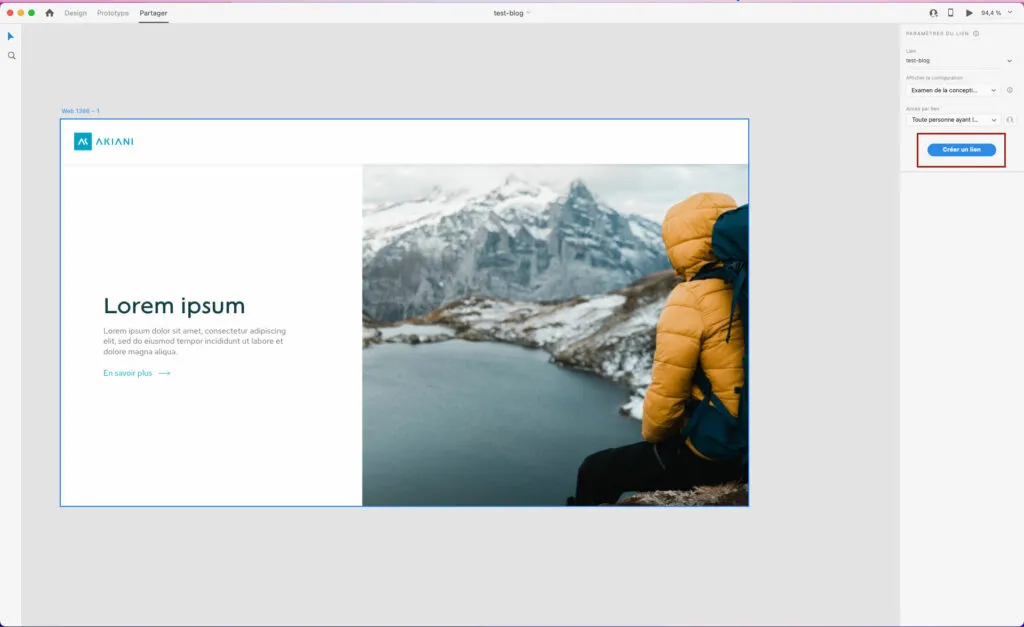
For the final step, all that’s left is to click on the “create a link” button. If your file has many screens and downloadable elements, the link can take several minutes to be generated.
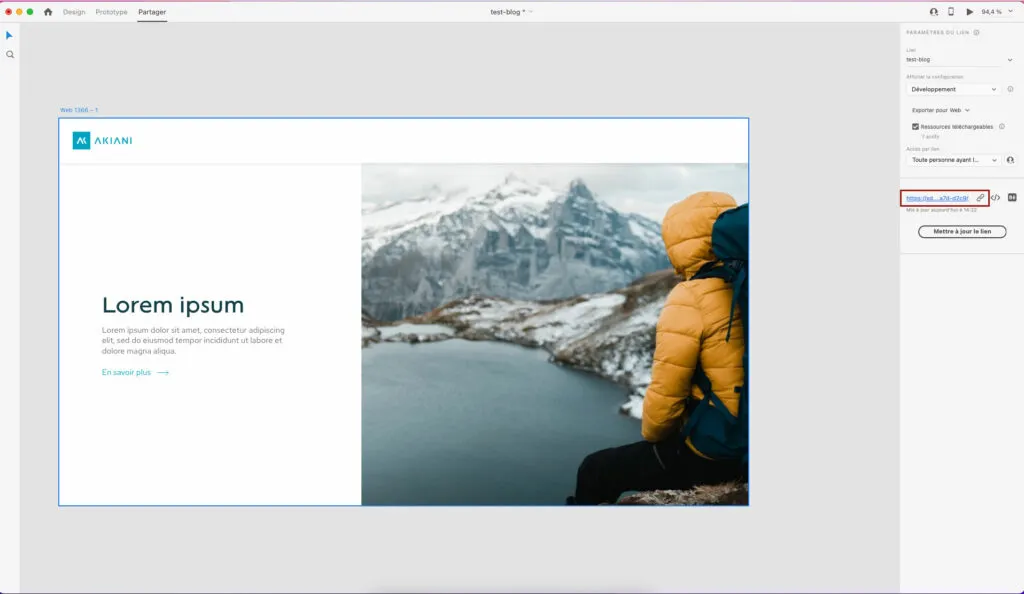
All that’s then left is to share this link through the “link” icon. If you want a preview of what it looks like on the developer side, just click on the blue link.
And on the developer side, how does handoff with Adobe XD work?
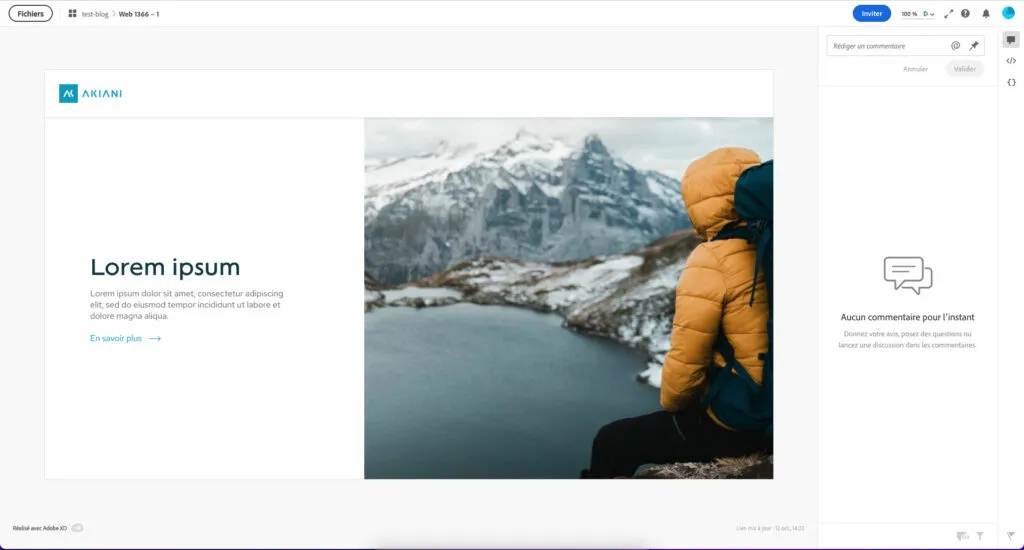
On the developer side, several options are available to you. You can write comments to ask questions or give feedback in the “write a comment” box located at the top right.
A very useful feature for iterating quickly while targeting the relevant elements.
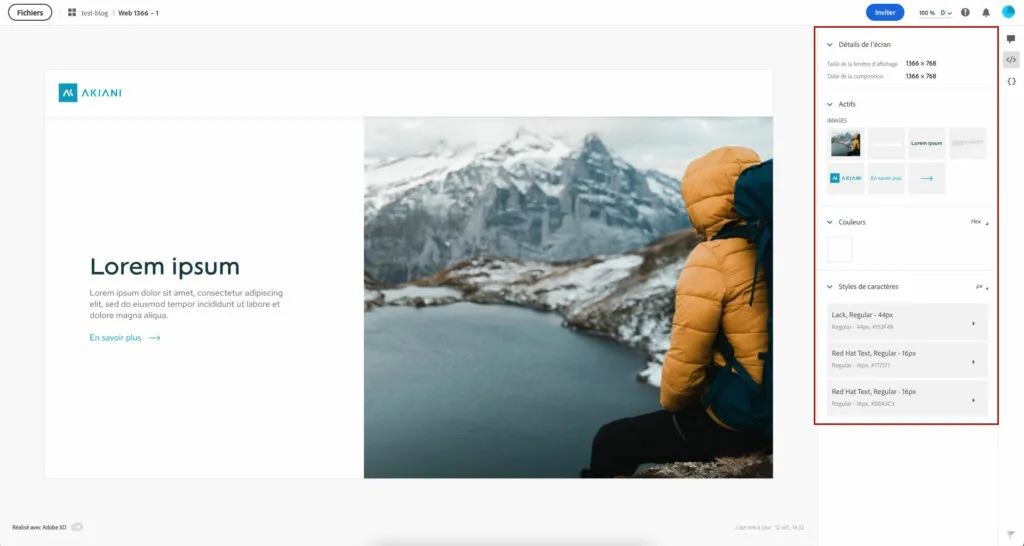
To retrieve the design elements, click on the second tab on the right, the one with the </> code icon.
On this page, you can see the technical details of the screen, the elements of the page, the colours with their hex codes and the character styles in use.
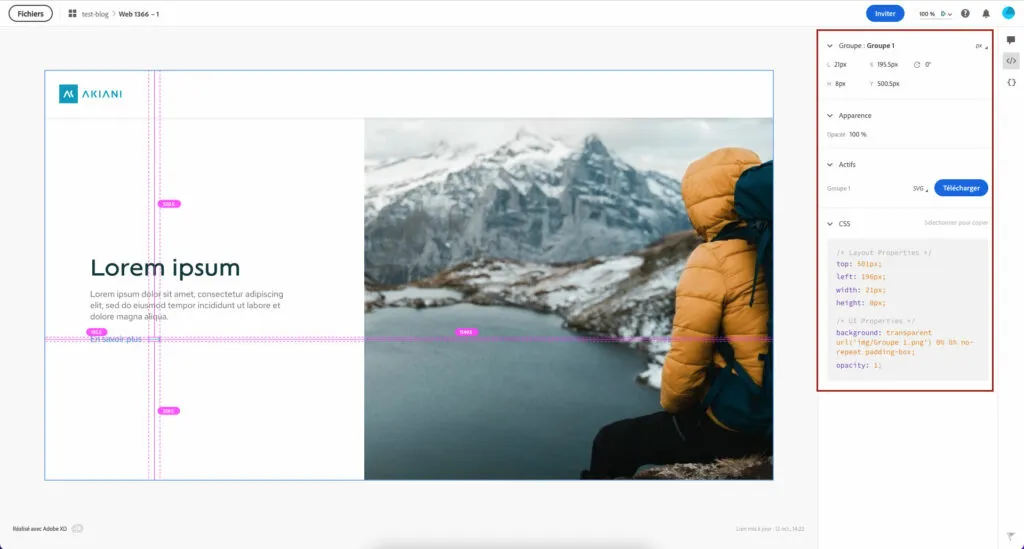
In our example, we want to get the blue arrow next to “Learn more”. Just click on it to display the details of this element on the right. You can then access the dimensions, appearance and CSS code, with the option to download the element in the desired format.
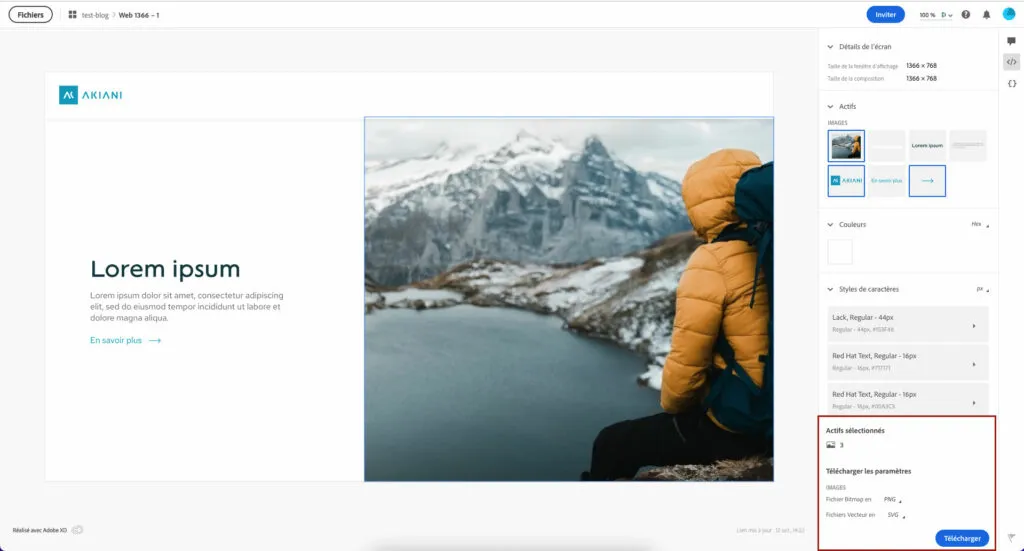
How do you download several elements at once from the Adobe XD handoff?
Click on the elements in the “assets” category, they highlight in blue. A banner at the bottom lets you download everything. In our case, we selected an image, the logo and the arrow icon.
How can developers see the updates?
Need to update your screens?
You just need to make your changes, save your file, then update the link. The same process as the one described earlier: go to the share tab, then click on the “update the link” button. Thanks to this feature, no need to resend it to the developers, the same link will automatically be updated.
That said, do remember to let the development teams know that the link has been updated.
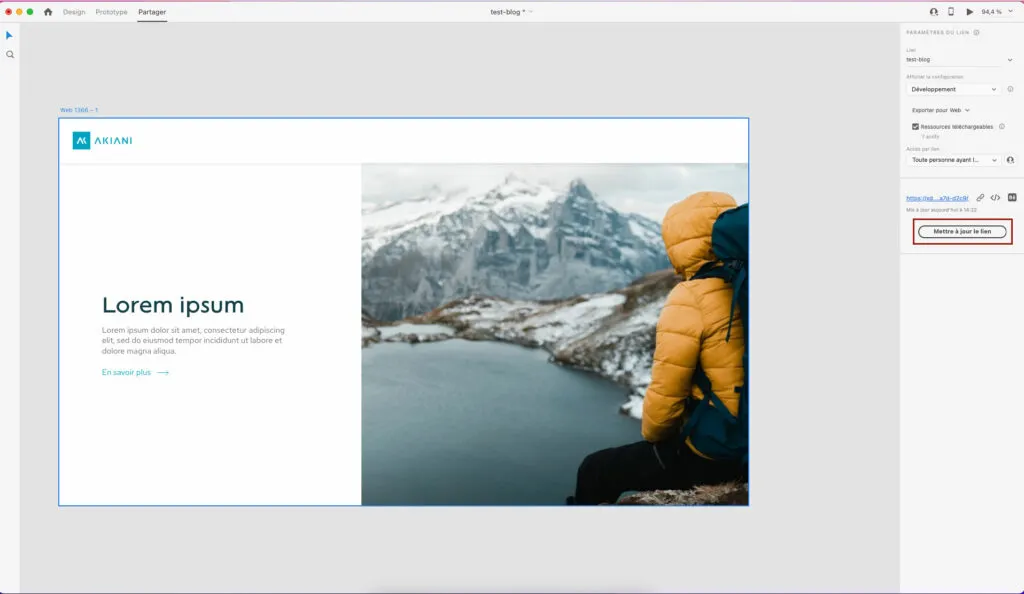
Note that if you are on an online document, your changes will be visible to your collaborators in real time.
What about collaboration with your other colleagues?
If you are used to working with Jira or Slack, Adobe XD has aligned itself with the other handoff tools.
For your ticket management on Jira, you just need to copy/paste the link of the relevant page into your Jira ticket. The link will be automatically recognised, with a preview image. You will have the option to add your comments, but also direct access to the specifications for the developers. If you want more complete explanations, please refer to the official documentation. (opens in new window)
If you want to share your design with your teams or clients, Slack and Microsoft Teams can also be used through the plugins available on the Adobe marketplace. They let you share your design, prototypes, artboards and so on more quickly. For more information, please refer to the following documentation: Adobe XD plugin for Slack (opens in new window), and the Adobe XD plugin for Teams (opens in new window).
A choice motivated by internal processes
At Akiani, our decision to go with the Adobe XD handoff is motivated by getting the most out of the Adobe suite and by streamlining our collaboration processes.
The benefits that feel essential to us and that justify using this solution:
- Avoid adding subscriptions and tools
- Stay on the same software from mockup design to handoff (going through tests and iterations)
- Use both offline and online modes
That said, sharing with developers is not perfect either. First of all, what’s missing is the ability to categorise the different screens and organise them by section to find your way around more easily.
It is also currently impossible to get an overview of all the projects for a single client (or a global view of a single project broken down into batches).
So there is still room for improvement to make the Adobe XD handoff a truly complete and indispensable feature.
🤔 And you, which handoff tool do you use? Tell us in the comments.