To begin with, what got us prototyping a product with Claude was a round of user testing we had to run with business users on a very comprehensive project. There was a front end for end users, but also a back office for administrators. All of it came wrapped in one single product. So we had several types of users who were going to take these tests.
We were also short on time, so we were only going to have them test fragments of the journey. So we asked ourselves whether it was worth using AI prototyping to go further than the prototypes we usually offered, so that users could be as free as possible during the test and move through the product more freely, to see, in a fairly natural way, what their interactions would be.
What we used to do
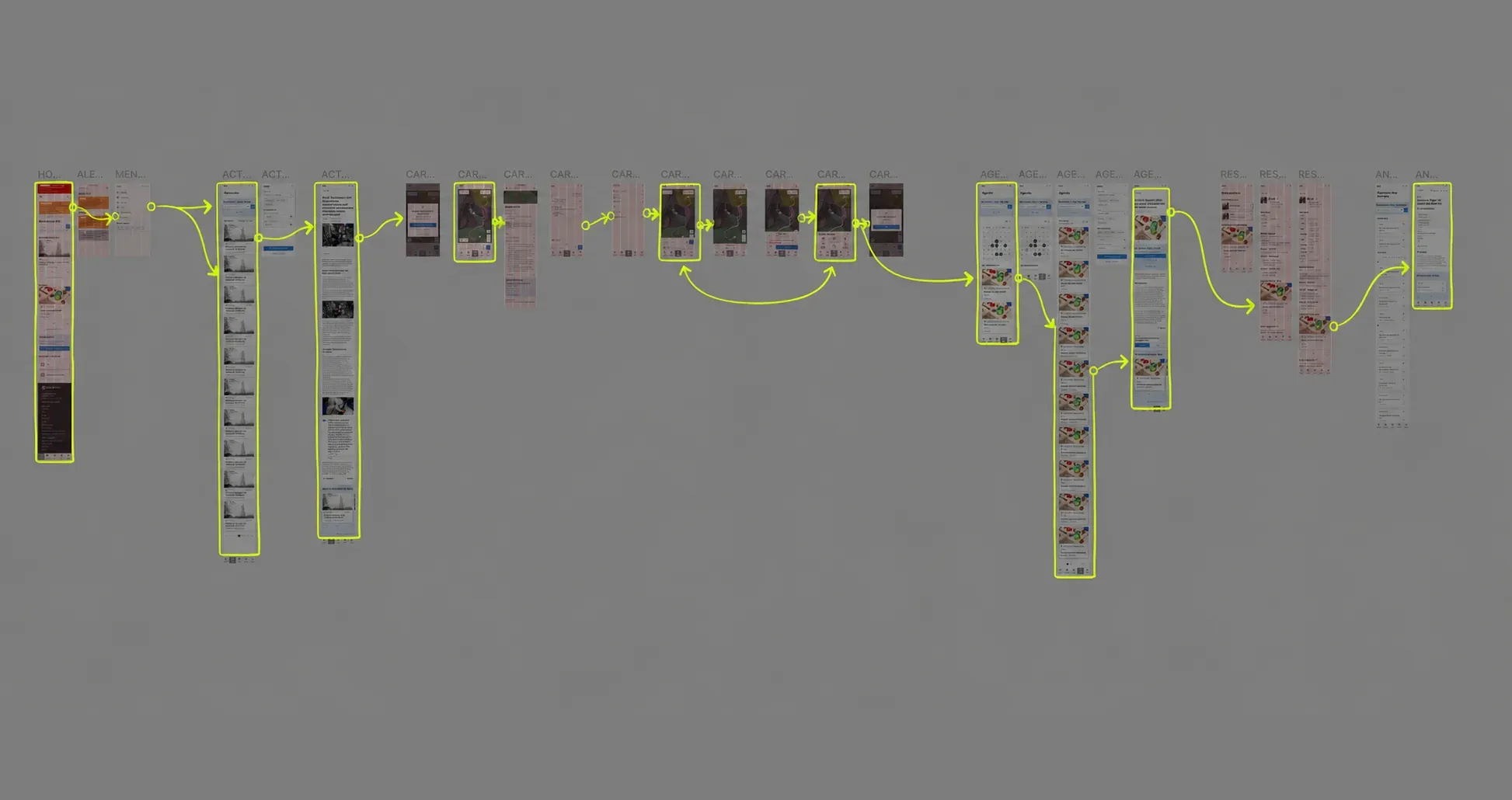
Before trying AI prototyping, we prototyped fairly conventionally in Figma, starting by writing our test scenarios. Based on these test scenarios, we would prototype only the screens needed to run them. So we really limited ourselves to prototyping only what was in our scenario and left all the other screens aside.
A first test that blows through the tokens
We started with several tests. The first one was simply to give Claude our entire Figma file, with all the screens laid out and linked to each scenario. We ask it to build us a prototype as a Claude artifact. And of course, it didn’t really work… It actually took a huge number of tokens. It blew through our token limit without us seeing any result. So we had no view at all of what it was doing, or whether it was succeeding or not.
We find the best approach: screen by screen
In the end, we changed technique and went for building the prototype screen by screen instead. That is, we gave it the link to the starting Figma screen. We then let it recreate the screen without mentioning interactions. Our goal was to let Claude recreate the screen while making sure it was as pixel perfect as possible, so sometimes with a few back-and-forths to make sure it respected our spacing, and the responsive behavior too, etc. Then, once we’re happy with the result, we move on to the next screen and make sure the links between the two pages work properly.
The further we got in the process, the fewer back-and-forths we needed on building the screens, since it kept in memory the feedback given along the way to make sure the screens were as pixel perfect as possible compared with our mockups in Figma. This work ended up being fairly quick. It got quicker and quicker as we added screens.
When there was more generic feedback, for example adding toast notifications at the end of a journey, we could easily tell it to apply this toast notification logic everywhere it seemed relevant. And so in a single prompt, we had added notifications for seven different scenarios. But it kept the contextual logic. That’s what is really interesting, the fact that it is able to contextualize, to read the content of the screens so it stays highly contextual.
Next, there was of course human checking, since some elements weren’t necessarily in our Figma. It did read the annotations in Figma, but some elements weren’t specified, such as what you could find under a drop-down, or the filters available in a filter menu. Claude had contextualized, but a quick human pass was still needed to make sure there were no errors, especially in what it had interpreted.
What’s also fairly interesting is that while this prototype was being built, the mockups were reworked too. When that happened, we could tell Claude that such and such a screen had been changed. It was then corrected accordingly in its version of the prototype with the new screens.
Good practices
What matters, in the end, is to frame the working session properly at the start, that is, to tell it the dimensions we’re going to want to work on. Also, if we want responsive behavior, to give it guidance on the limits of the responsive behavior. For example, we had tables. And in this table, the responsive behavior wasn’t ideal in the first version Claude had chosen. So it was important to give it guidance on which rows of the table became responsive. And, on the contrary, those that shouldn’t, or at least had to be fixed at a maximum or minimum size.
What was also important in the process, more than going screen by screen (since multi-screen didn’t work that badly), was testing the skills built into the Figma MCP. A colleague’s skill had burned through all our tokens for an average result, in a relatively very long time and 1.5 billion tokens, compared with the last test we ended up running, which took a few minutes and cut the number of tokens by a factor of 1,000. And testing the models too, the most token-hungry one not necessarily being the most effective depending on the tasks at hand.
Feedback from the testers
In the end, as far as the test goes, what came out was first of all freedom for the users. They weren’t constrained at all, since the whole prototype was functional. They could type text, filter, click on every single button. So in fact, it made for a very intuitive experience. And it let users go even beyond what we expected.
There was feedback and criticism that was much more spontaneous, and without preconceptions.
On the other hand, since it was a Claude artifact, we did get feedback about the fact that there was a warning message shown right at the start. So it was important to make clear that an AI tool had been used only to build the prototype, but not for the mockup work. And that ultimately, the substance had really been thought through and created by humans. And that it was only the, let’s say, technical solution of the dynamic prototype that had been AI-assisted.
A significant time saving
AI prototyping let us do more in the same amount of time it would have taken us to do only our seven simple scenarios. This time, in the end, we were able, in the same time, to build the complete prototype, that is, add around fifteen screens and also make sure all the components were truly dynamic. That would easily have taken us one to two extra days of work in the UX phase, since not every component state had necessarily been designed, such as the content of all the drop-downs, being able to have dynamic filtering, etc. That kind of thing takes a lot more time. And this time, thanks to AI, we were able to get these results extremely quickly.
All in all, setting aside our first approach, which was a failure, it took us one day to build the complete prototype, whereas that same time would only have let us build seven scenarios, but with a much more superficial approach, without adding dynamic filtering, the ability to type text in the search bars, etc.
What we take away
Looking at our first approaches and at the final result, we realized that the best way to build a dynamic prototype was, obviously, first of all to have screens and journeys that were well settled from the start. We can of course ask the AI to add a few small simple screens for us, such as confirmation modals, etc. But the work was quick also because our screens were already designed, properly named, with a sound journey logic between them, and we also knew how a user was going to have to navigate through these screens. So we weren’t starting from scratch.
On the other hand, we need to guide Claude step by step so that it too understands this journey logic. And so it’s a bad idea to let it fend for itself by giving it only all the screens, because without guidance, it can easily make mistakes or at least take much longer to understand the journeys and the interaction logic between the screens.
We intend to keep running tests to see whether we can save even more time to get a reliable result, pixel perfect compared with our mockups, while constantly reducing the time needed. But we’re also asking ourselves whether building these dynamic prototypes, much faster, might let us go much further, even to design more elaborate interactions with micro-animation, etc., which could perhaps also help with the handover to development teams.
We also realized that this very advanced prototype was a plus for sharing the screens with the project team. Stakeholders bought into the mockups more easily, since very quickly they could get a sense of the interactions, get a sense of what the product would really be, and so also test it fully on their side. It carried more weight than screens placed side by side in a Figma file or in a PDF.