👟 Quick exports with Zeplin
The arrival of new design software has brought a revolution and many changes, both in the way we design and the way we build our interfaces. Zeplin quickly followed the trend and now lets you import interfaces designed in various tools such as XD, Sketch, Figma and Photoshop. You just have to download the plugin and select the relevant artboards. Note that if you export many screens, or heavy ones, the process can take several minutes.
⚡ Be careful not to touch your source file while Zeplin is exporting, this could cause a few bugs.
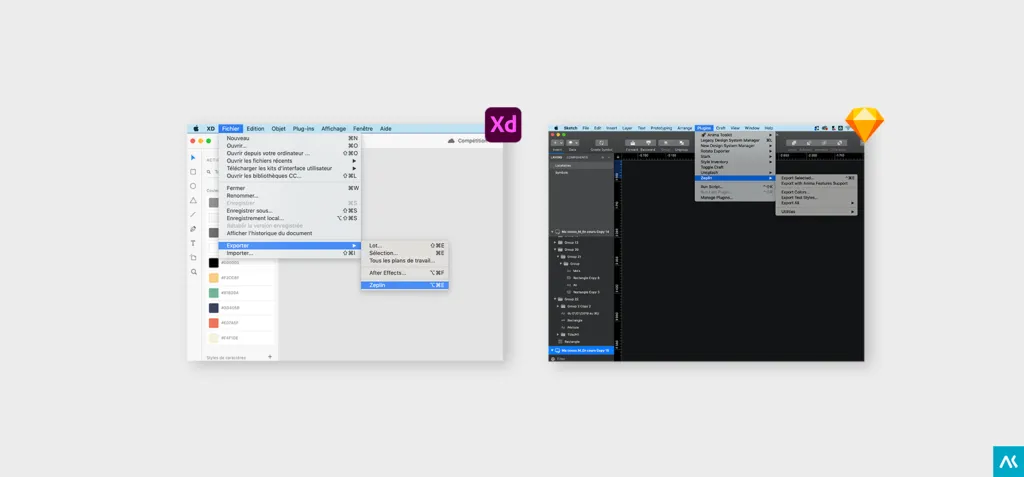
👉 For a faster export with XD on Mac, use the keyboard shortcut: ⌥⌘E or Ctrl + Alt + E on Windows.
✏️ Designers
How do you prepare your artboards so that developers can retrieve your assets in Zeplin? Before exporting all your screens, make sure to mark all your assets as “exportable”, otherwise developers won’t be able to retrieve them from Zeplin.
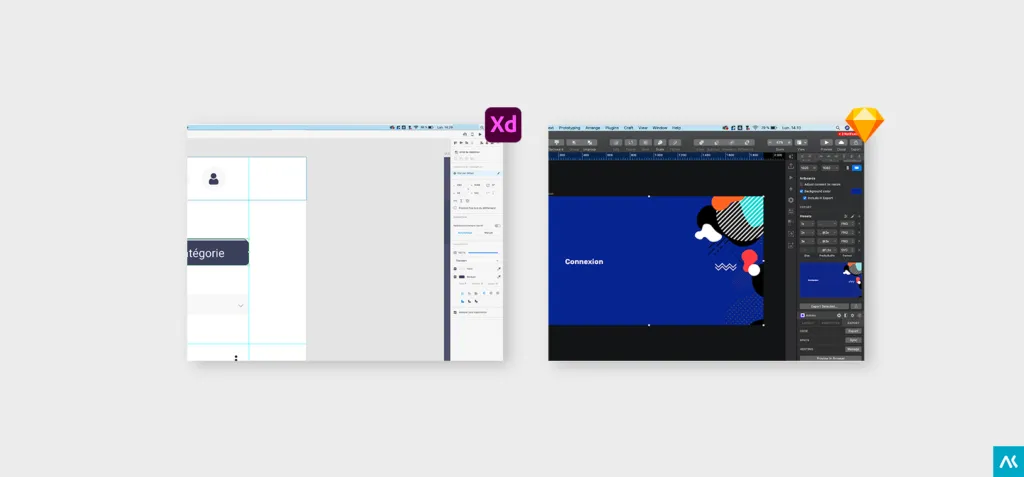
In Sketch, select your artboards, then click on “make exportable” in the right-hand panel. Then, in “presets”, select the desired export formats (usually .png and .svg).
In XD, you have to select all the elements of the artboard (not the artboard itself, unlike in Sketch), then tick “mark for export”. To avoid wasting too much time at handover, remember to do this every time a screen is finished.
And for your design system?
If your project has a design system, it’s best to start your exports with your components. Zeplin will automatically generate all your colours and your fonts (sizes, weights, cases, different colours) in its style guide. For the other components, just export your parent components, then categorise them by section in Zeplin. You can then export your screens without any issue.
👩💻 What about developers?
After selecting the interface you’re designing, Zeplin automatically generates the code for your elements. The languages used are: CSS for the web, Swift / React / Objective-C for iOS, or XML / React for Android. This resource lets developers save precious minutes. Be careful though, the generated code is not always the most optimal.
Developers can also save time on the asset retrieval phase. Whether it’s your images, your icons or your illustrations, all your graphic elements are exportable from Zeplin, in .png and .svg. You no longer need to put together a folder where you had to take the time to properly name and export each asset, then send them on to the developers. That said, this asset preparation phase requires a few small steps on the designers’ side before the export to Zeplin (see the designers section).
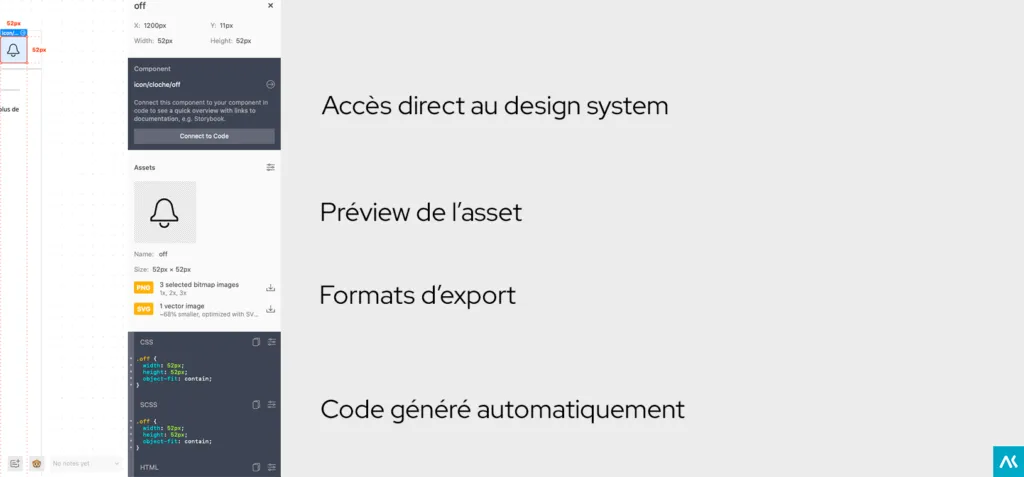
👉 You can also connect your design system with GitHub, Storybook and your editor. For more information, you’ll find the full documentation here. (opens in new window)
📎 Collaboration with your team and your clients thanks to Zeplin
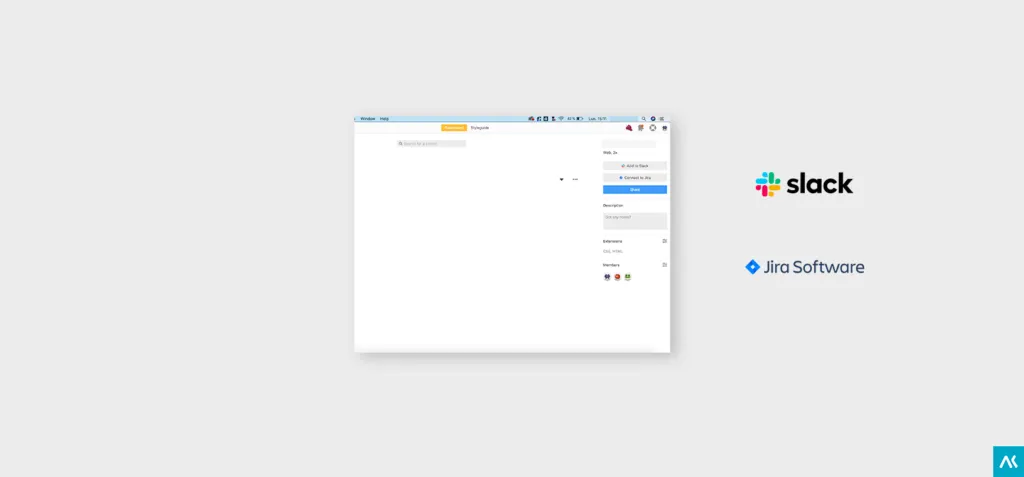
You can link your work to your Slack or Jira, so that your whole team is notified when something is changed, a new comment is added, or new screens are added. The information will flow automatically onto the chosen platform. So no need to send a message or an email to let your colleagues know that a change has been made.
📨 You can also invite your clients so they can comment and browse your different sections. Just click on “members” at the bottom right, then the “invite” button at the top of the pop-up. Several options are available to invite your clients to join this space: by email or via a link.
🥊 Zeplin challenged by Adobe XD?
Taking cues from Figma’s collaboration features, Adobe XD now lets you share your screens and your design system with developers. Once you put your document online and share it in “developer mode”, they will have access to all your elements (the same way as with Zeplin), without having to go through another tool. Find the full documentation (opens in new window) on this process.
In the long term, could XD bring the InVision and Zeplin tools together in one place?
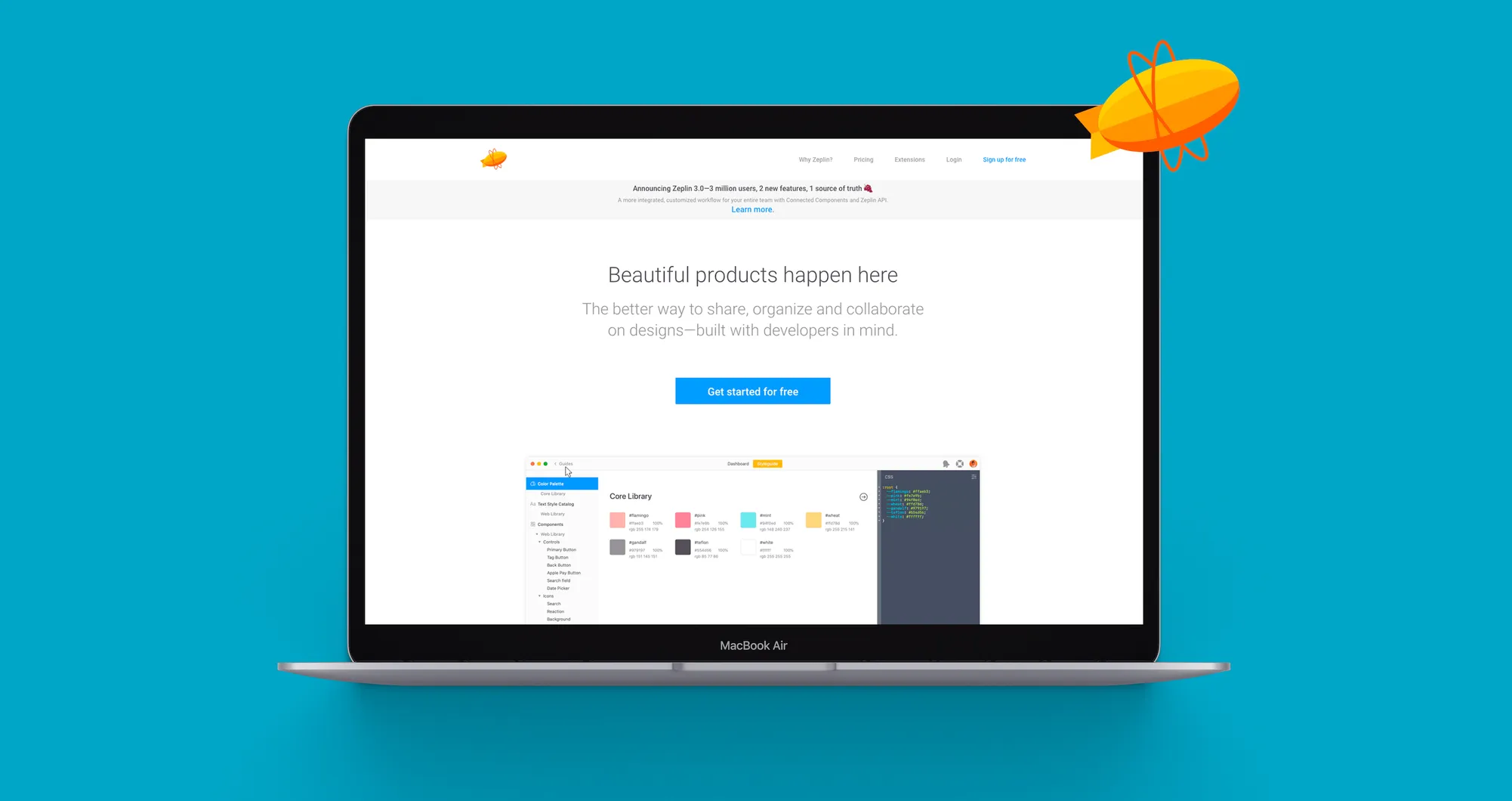
💡 You can try out Zeplin and get started for free right now.
Beyond one project, you’ll need to move to a professional account, and therefore pay monthly. You can find the pricing page here 💸 (opens in new window).